Software Guide
CSC148 uses two important pieces of software: the Python programming language, and an Integrated Development Environment (IDE) called PyCharm to use to write and run your Python code. You’ll be able to complete your work for this course using a personal computer or any machine in one of the labs. If you haven’t used any labs at UTM before, here’s a great FAQ for new studentsa to check out. We will be using the labs in the DH building (see exact rooms in the syllabus).
This guide will take you through the process of installing and configuring the necessary software for CSC148 on your personal computer or on the lab machines.
Let us know as soon as possible if you’re having difficulties with your setup, and we’ll help you the best we can! We’ll be keeping track of common issues in the Troubleshooting & Tips section at the end of this guide.
Setting up your personal computer
Part 1: Software Installation
-
Go to https://www.python.org/downloads/release and download Python 3.8. Then, install it.
You are required to use Python 3.8, and will almost certainly run into some trouble if you’re using an older version of Python. If you have previously installed an older version for another course (e.g., CSC108), we recommend un-installing that version from your computer.
We recommend not changing any of the default settings during installation.
Note: if you use Ubuntu Linux on your computer, do not uninstall the default python version, as it is tied into a lot of other software, which makes it necessary for the normal usage of your operating system (this may apply to other Linux distributions as well). Instead, install the python 3.8 version separately, from the deadsnakes ppa. Here are some quick instructions on how to do so:
- Open a Terminal, then type in the following (you must run this from an account with sudo privileges):
- sudo add-apt-repository ppa:deadsnakes/ppa
- sudo apt-get update
- sudo apt-get install python3.8
-
Go to https://www.jetbrains.com/pycharm/download/ and download the Community Edition of PyCharm. Again, we recommend keeping the default settings during installation.
-
Download and install pyta 1.6 via pip by doing
pip install python-ta
Part 2: Configuring PyCharm
PyCharm is a very powerful software development tool that’s used by industry professionals around the world. It’s very powerful, but its defaults are a little too much to handle when we’re just getting started! This part will set you up with a set of folders to use for your work in CSC148, as well as simplify the configuration of PyCharm to make it easier for you to use this semester.
-
Download the file
csc148.tar. -
Extract the contents of that file into any folder you like, such as your “Documents” folder.
On Windows, use a program like Winzip to extract the contents of the file.
-
Start PyCharm.
-
When prompted to choose a project, select “Open”. Navigate to your new
csc148folder, select it and press OK. -
Select “File -> Manage IDE Settings -> Import Settings…” on the menu. Navigate to your
csc148folder, and inside there should be asettings.jarfile. Select it and press OK. -
Make sure all components are selected, and press OK.
-
PyCharm will restart. You may need to restart it one more time, if it asks you to.
-
In PyCharm, press
Ctrl + Alt + S(Windows)/CommandKey + ,(OSX) to access the Settings window. Or, look under “File -> Settings” (Windows)/“PyCharm -> Preferences” (OSX) to access this window. -
In the Settings window, go to “Project: csc148 -> Project Interpreter”.
-
Select Python 3.8 in the dropdown menu for the Project Interpreter.
If you don’t see it in the dropdown, but you’re sure you installed it, then jump down to Locating your Python interpreter below.
Part 3: Installing Python libraries
For this course, we will be using a few Python libraries that must be installed separately. The easiest way to install them is to use PyCharm:
-
Make sure you’ve opened your
csc148project (see Part 2). -
In the
Projectpane on the left side of the screen, open up theRequirements.txtfile.If you see a note about “Python packaging tools not found”, click on “Install packaging tools” to fix this.
-
You should receive a message at the top of the opened file about missing packages. Select
install requirements. -
If you don’t see this message appear, install the requirements by opening the Settings window, and doing the following:
- Open Project: csc148 -> Project Interpreter.
- Ensure that you have Python 3.8 selected in the “Project Interpreter” dropdown.
- Press the green “+” icon, and type in the name of one of the packages in
Requirements.txt, e.g.python-ta. (Don’t include the>=1.6.0.) - Select the package, and press “Install Package”.
- Repeat these steps for all packages listed in
Requirements.txt.
Part 4: Working with PyCharm
That’s it! You can play around with PyCharm’s settings: changing the appearance, keyboard shortcuts, etc.
We’ve given you a sample file called welcome.py in the csc148 folder. Read
through it and try to run it.
We have configured PyCharm to run real-time “inspections” on your code, which will detect syntax, logical, and style errors and highlight them as you type. Your prep and assignment submissions will be checked for style, so take advantage of this and get in the habit of fixing all errors right away.
Finally, the other nice thing about PyCharm is it will perform auto-completion for you when you use “dot notation” to access attributes or methods of an object. We’ll take advantage of this feature in CSC148 by providing PyCharm with type annotations so that it gives us relevant suggestions.
Setting up on the Labs
Note: because the CSC148 software has already been installed on the labs, the steps you’ll perform here are about configuring this software instead. If you are setting up your personal computer, follow the above instructions instead.
Configuring PyCharm
PyCharm is a very powerful software development tool that’s used by industry professionals around the world. It’s very powerful, but its defaults are a little too much to handle when we’re just getting started! This part will set you up with a set of folders to use for your work in CSC148, as well as simplify the configuration of PyCharm to make it easier for you to use this semester.
-
Download the file
csc148.tar. -
Extract the contents of that file into any folder you like, such as your “Documents” folder.
On Windows, use a program like Winzip to extract the contents of the file.
-
Start PyCharm.
-
When prompted to choose a project, select “Open”. Navigate to your new
csc148folder, select it and press OK. -
Select “File -> Manage IDE Settings -> Import Settings…” on the menu. Navigate to your
csc148folder, and inside there should be asettings.jarfile. Select it and press OK. -
Make sure all components are selected, and press OK.
-
PyCharm will restart. You may need to restart it one more time, if it asks you to.
-
In PyCharm, press
Ctrl + Alt + S(Windows)/CommandKey + ,(OSX) to access the Settings window. Or, look under “File -> Settings” (Windows)/“PyCharm -> Preferences” (OSX) to access this window. -
In the Settings window, go to “Project: csc148 -> Project Interpreter”.
-
Select Python 3.8 in the dropdown menu for the Project Interpreter.
If you don’t see it in the dropdown, but you’re sure you installed it, then jump down to Locating your Python interpreter below.
Troubleshooting & Tips
Here are some common problems (and their solutions) that come up in PyCharm.
Locating Your Python Interpreter
The Python interpreter is the program on your computer that is actually able to run Python programs. Here are some tips on how to get PyCharm to find it, if it doesn’t automatically:
-
In the Settings window, go to Project: csc148 -> Project Interpreter.
-
In the Project Interpreter dropdown menu, click on “Show All”.
-
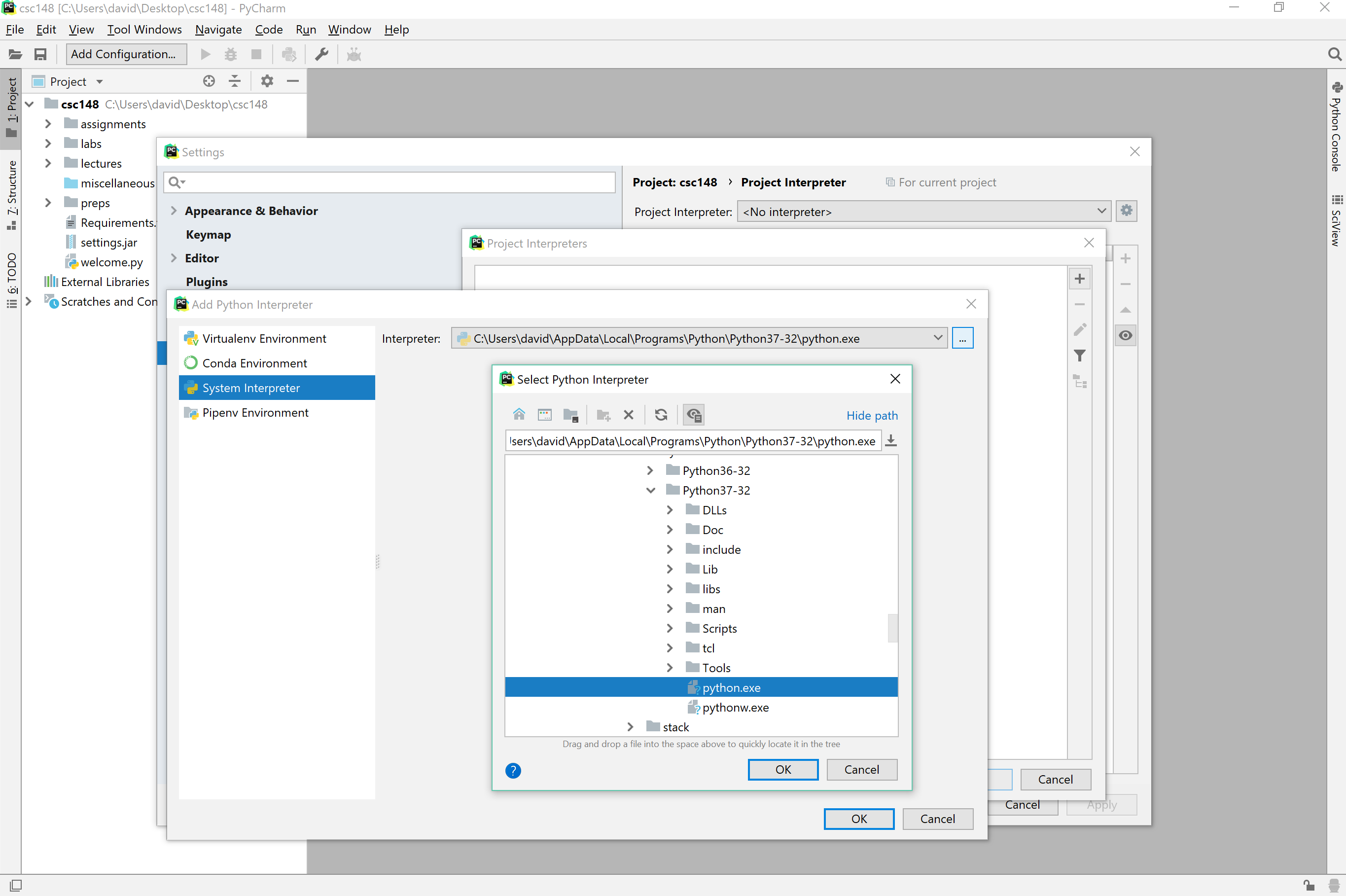
Click on the “+” icon on the top-right of the new window, and select “System Interpreter”.
-
Now you have to find a program called either “python” or “python3” on your computer. This is the Python interpreter. Its location will depend on where you installed Python, but by default you should look for something like:
- Labs:
/usr/bin/python3.8 - Windows:
C:\Users\<username>\AppData\Local\Programs\Python\38-32\python.exeorC:\Python38\python.exe - Mac:
/usr/local/bin/python3.8or/System/Library/Frameworks/Python.framework/Versions/3.8/bin/python. (If you seeusr/local/bin/pythonthis likely refers to a version of Python 2 on your computer, which you cannot use for this course.)
- Labs:
-
After you’ve selected the Python interpreter, click OK and then select it in the other window.
-
Restart PyCharm.
I have a
file hello.py, but when I try to run import blah, PyCharm can’t find the
module.
All folders with a blue icon in the Project view on the left are source folders, meaning they’re automatically searched for Python modules. Almost all of the folders we gave you are source folders already.
If you create your own folder, you’ll need to mark it as a source folder yourself. To do this:
- Right-click on the folder in the Project view.
- Select “Mark Directory As -> Sources Root”
- Restart PyCharm and try again.
I have a file hello.py, but when I try to run import blah in the Python
Console, PyCharm can’t find the module. It’s in a folder that’s marked as Sources Root.
Two possibilities:
- If you just marked the folder as Sources Root, you’ll need to restart PyCharm for this change to take effect.
- It could be that PyCharm isn’t searching any of the “Sources Root” folders. This is because you
haven’t imported the given
settings.jarfile.
I’m getting an error message about line endings. The file looks fine, what’s going on?
Different operating systems (Windows, OSX, Linux) use different ways to represent line endings. Since you
might use a different OS at home than on the labs, or from your lab partner, it’s important to make sure
the line endings are consistent. In this course, we’ll always use Unix separators (\n).
To convert your files to use Unix separators, go to “Edit -> Line Separators -> LF - Unix and OS X
(\n)”.
My Python console is missing!
By default it should appear, but you can always start it by going to “Run -> Python Console…”
I get an error when I try to start the Python console or run a file.
It’s likely that your Python interpreter isn’t configured properly. Check steps 8-10 in the “Configuring PyCharm” instructions you followed above.
I can’t for the life of me figure out how to run a file.
Yeah, this is one of the complexities of many IDEs. Open the file you want to run, then go to Run -> Run… and select the file name from the popup menu. The next time, you can press Shift + F10, which runs the most recently run module.
How can I load my code in module
hello.py into the Python console?
Two ways:
- In the console, type
from hello import *. - Open your file, then right-click in the editing pane and select “Run File in Console”.
For more repeated testing, either make use of the if __name__ == '__main__' block or a
separate testing file.
When I import my file in the Python console, my most recent changes aren’t used.
This happens when you import a file in the Python console (import myfile), then make changes
to the file, and try to import it again. Your changes won’t get noticed by the console, and your old
version of the file will be used.
Instead, run reload(myfile) to reload the module rather than import it.
I tried to run welcome.py but got an error.
The two most common errors are:
- Not using Python 3.8. Check the version of Python you’re using carefully.
- Not having installed the
python_talibrary. This will cause theimport python_tastatement on line 36 to fail.
Both of these issues can be fixed by reviewing the steps under Setting up your personal computer and making sure you’ve followed them correctly.
Textbooks and Documentation
- Python Documentation: Often terse, but it's authoritative and contains useful snippets of Python code. You might use the documentation if you want to learn about a specific feature of the language, but we recommend starting with a different resource if you're confused about a concept or don't know what to look up.
- Python for Software Design: How to Think Like a Computer Scientist: A very solid textbook with the manuscript available for download. It offers alternate explanations for the concepts discussed in the course text.
- A Byte of Python: A great beginner text. It covers introductory and intermediate material very well.
- Dive into Python 3: A book for a Python novice who has experience with other languages. Several topics, like HTML parsing, are useful for side projects of your own.
(Primarily) Examples and Exercises
- Python Visualizer: Philip Guo developed an online debugger that also displays a representation of memory as the program executes.
- Python Tutorial: The official Python tutorial is very complete. It features lots of code examples, but it doesn't contain many explanations. We recommend trying the examples out in an interpreter.
- Google's Python Class: A full course on Python for programmers with experience in other languages. The material is fast-paced, but you may find it a good refresher after it is covered in lecture. The exercises are useful for review, too.
- PySchools: A login is required, but the site contains some useful exercises and opportunity to compete with other students on challenge problems.
Online Boards
Be very careful if you decide to ask for help on an online discussion board. Often, the people on those boards are professional programmers, so they usually expect other users to have a base level of knowledge and answer questions assuming that you know how to program. That can be quite confusing!
You should also be aware of the academic integrity guidelines. Getting help on a concept is allowed, but whenever you ask a question about an assignment or exercise to be turned in, you're on dangerous ground! Why? You won't be able to ask for help on exams, so if you become dependent on hints, you'll put yourself at a disadvantage. Furthermore, depending on the kind of response you get, it could be considered "unauthorized aid", which will result in an academic offense (like plagiarism). The course discussion board is safe, as you'll get answers relevant to the course (without getting too much help!), but be very careful about what kind of questions you ask on other boards.
All of that having been said, interacting with other programmers on discussion boards can be very helpful and is very good training. If you work on an open source project, you'll spend a lot of time interacting with people on similar forums. If you'd like to try an online forum, we recommend using Stack Overflow. Make sure to use the python tag. You should also probably use the homework tag to indicate that you're a student -- but again, don't ask questions about work to be turned in!